Know your volumes
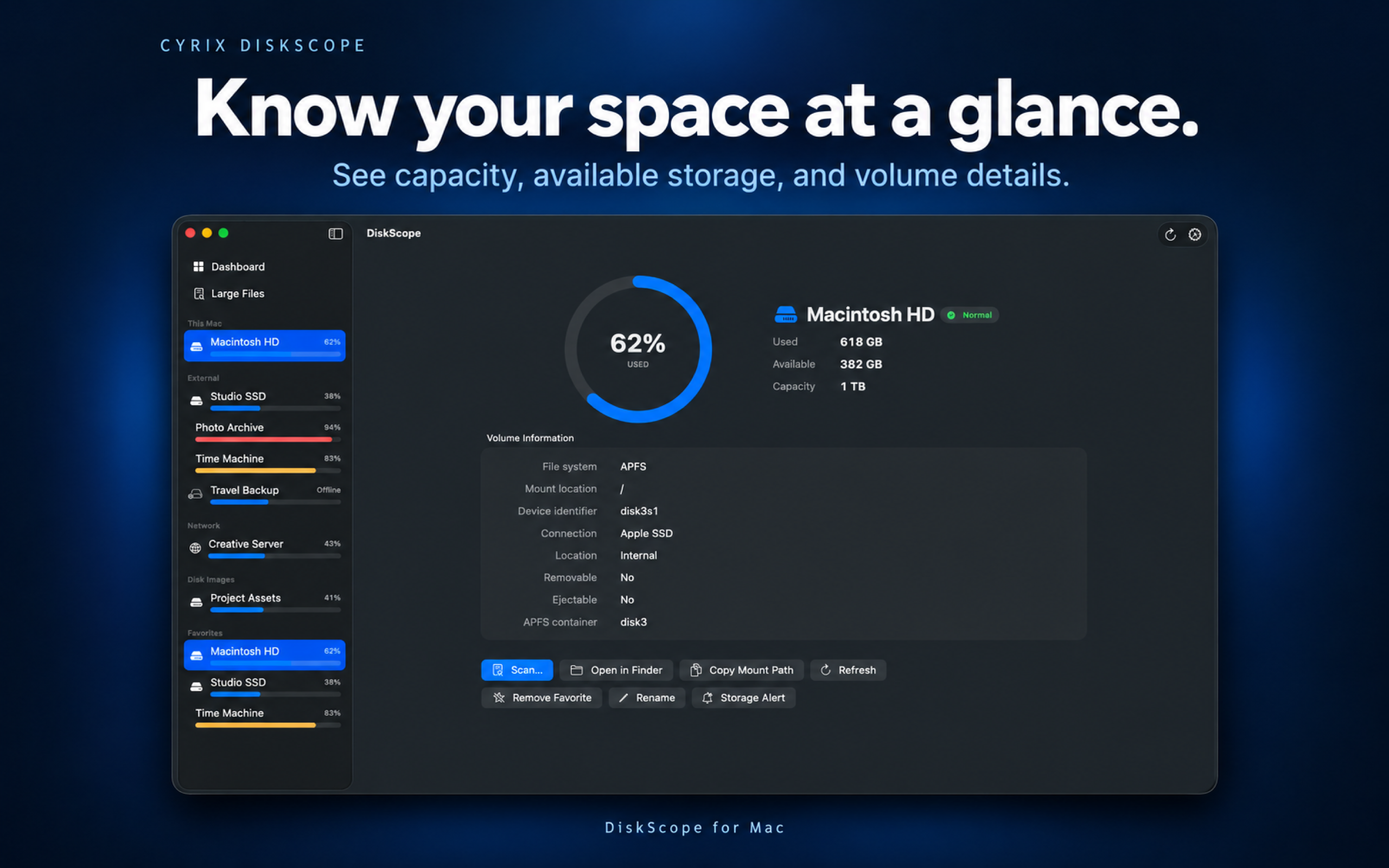
Inspect file system, mount path, device identifier, connection type, removable and ejectable status, and APFS container information when available.
MACOS / STORAGE / LARGE-FILE EXPLORER
See where your Mac’s storage goes. Monitor connected drives, find large files and folders, and keep free-space status close in the menu bar and widgets.
Native for Mac · Read-only folder scans · Your data stays on your Mac
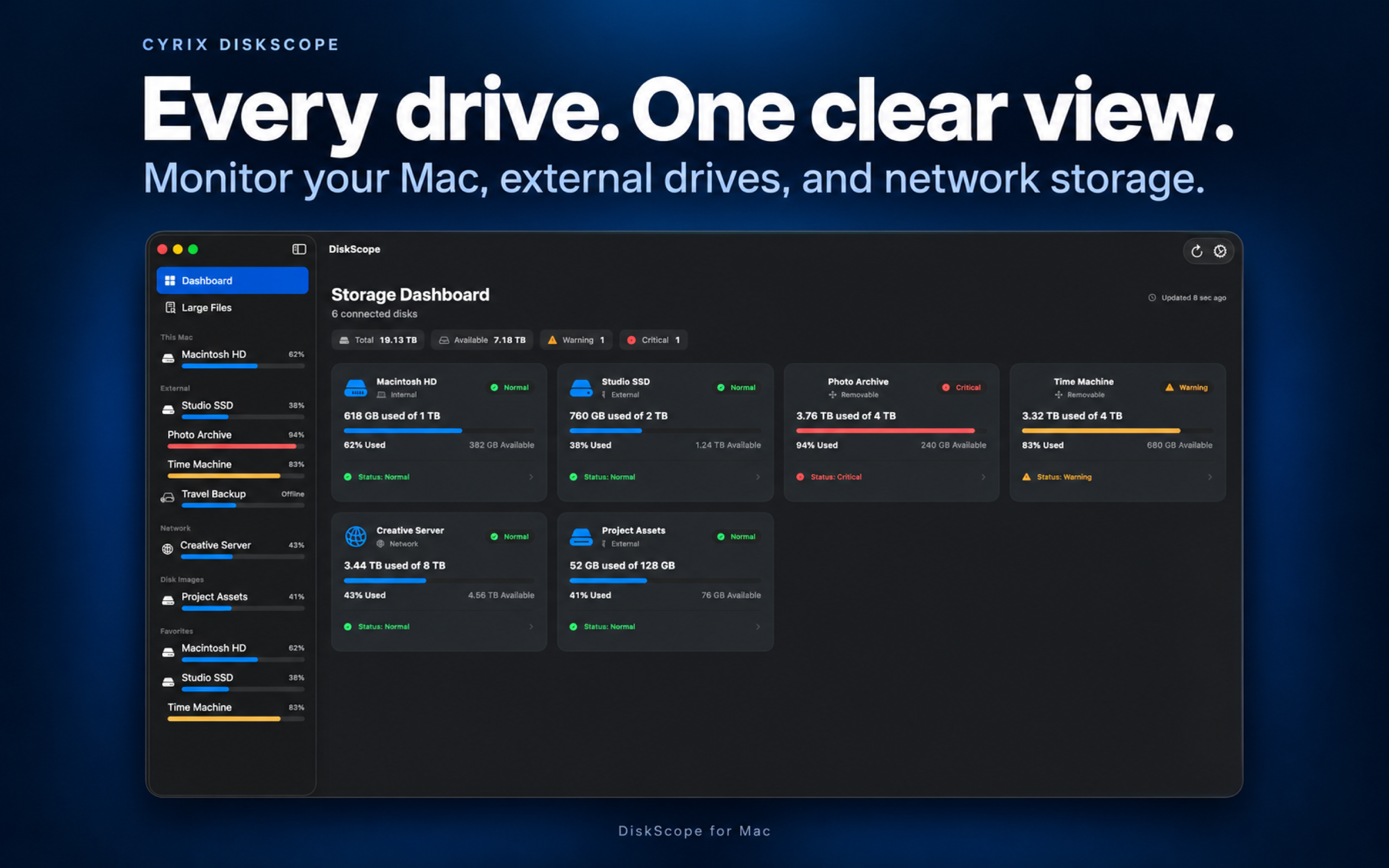
Disk dashboard and details
See total, used, and available capacity for internal, external, network, disk-image, and system volumes. Warning and critical states help you spot low space at a glance.
Inspect file system, mount path, device identifier, connection type, removable and ejectable status, and APFS container information when available.
Mark favorite disks and give them custom names inside DiskScope. Disconnected favorites remain visible with their last-connected time.
Open a volume in Finder, copy its mount path, eject a supported drive, or start a folder scan from its detail page.
Refresh manually or automatically every 1, 5, 15, or 30 minutes. Connecting or disconnecting a volume also triggers an update.
Capacity snapshots stay on your Mac for 90 days. The current interface does not include a history chart.
Choose system, light, or dark appearance. Control Dock and menu bar visibility, launch at login, and whether system volumes and disk images appear.
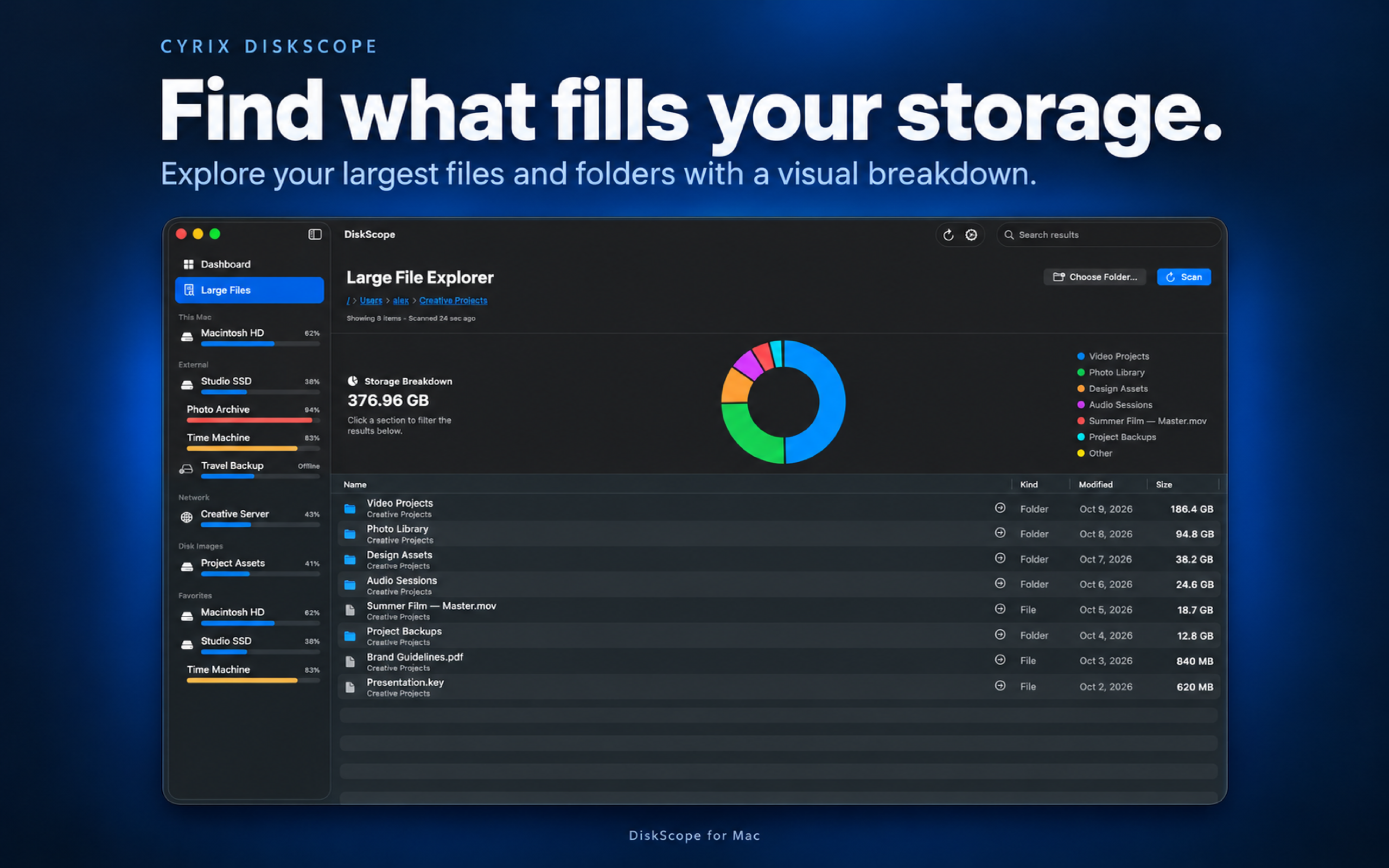
Large-file explorer
Choose a folder and DiskScope calculates the aggregate size of its immediate files and folders, including hidden items in that authorized location. Results are ranked largest first without repeating nested paths.
Review item kind, modification date, and size, or search by name or path. Open files with their default application, reveal items in Finder, or copy their paths. DiskScope does not delete files.
An interactive pie chart shows the six largest items and an Other group. Click a section to filter the list, then clear the selection to see all results.
Double-click a folder to scan deeper. Return with Back or clickable path breadcrumbs. Previously scanned folders reuse cached results; file changes invalidate affected caches.
Follow scan progress and cancel at any time. A security-scoped bookmark remembers your chosen folder. Navigating outside it requests a new folder selection.
Inside DiskScope
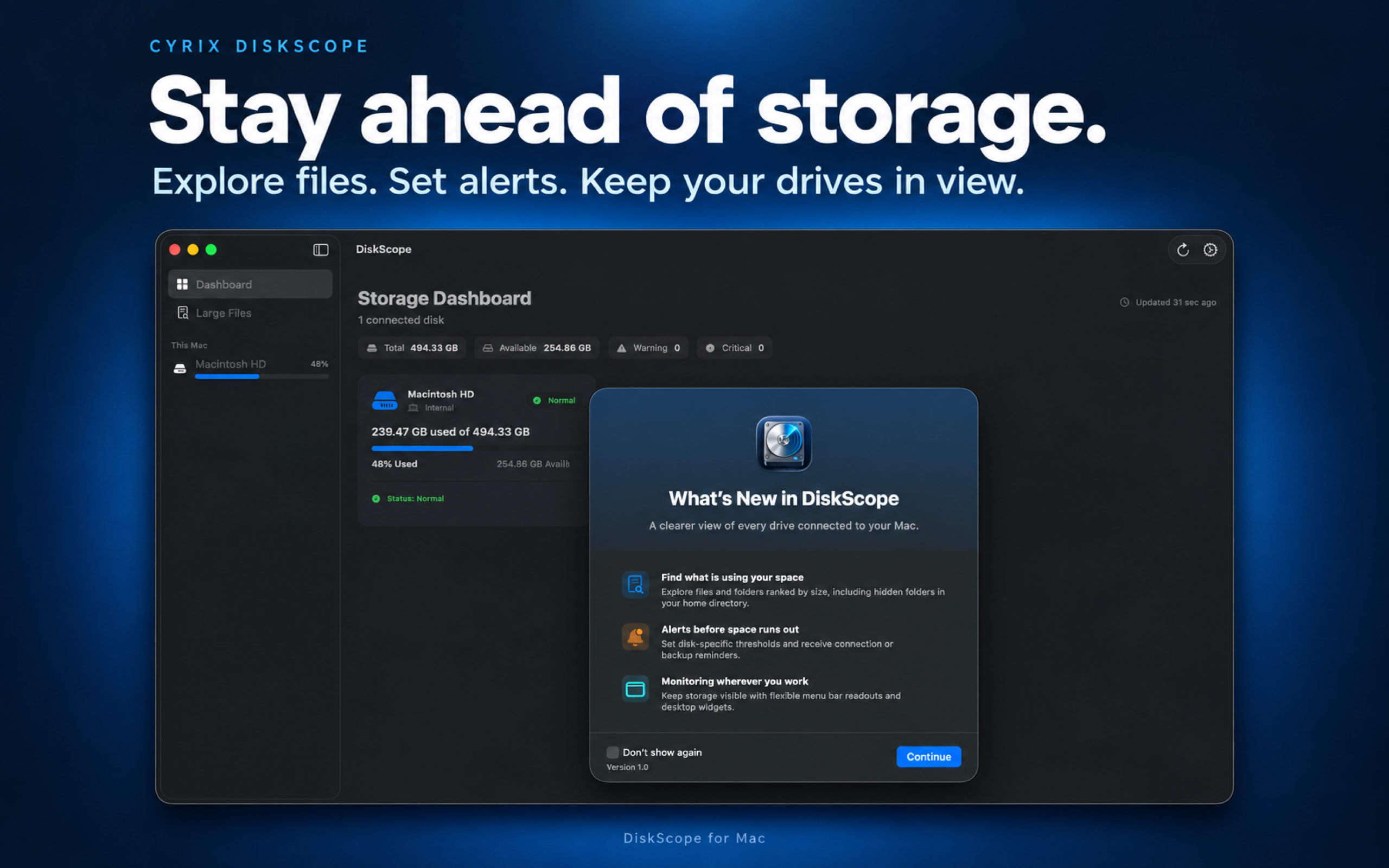
Menu bar, widgets, and alerts
Choose an icon, percentage used or available, or a used/free storage readout. Monitor primary Mac storage, all disks, a selected disk, or the most-full disk.
Add small, medium, or large widgets for a specific disk, primary storage, all disks, internal disks, external disks, or the most-full disk.
Set disk-specific percentage-available or free-space thresholds with presets or custom values. Enable favorite-drive connection and disconnection alerts, plus missing-backup-drive reminders after 1–90 days.
Private by design
DiskScope is sandboxed and requests read-only access to folders you explicitly select. It does not delete or modify scanned files.
No accounts, advertising, analytics, tracking, network service, or third-party SDKs. File names, paths, sizes, disk information, preferences, and history are not uploaded.
Settings, folder bookmarks, custom disk names, favorites, and capacity history remain local. The app and widgets share storage information through a local Apple app group. Optional notifications are generated on your Mac.
Read the app privacy policyRequirements
Enable Settings → General → Demo mode to explore sample disks, favorites, storage warnings, and navigable sample folders. The menu bar uses the same sample disks.
Demo data stays in memory and is never saved to disk history or widget snapshots. Scans and ejecting use sample data, and Finder actions do nothing. Turn demo mode off to restore your real disks and saved settings.